Blog
Pinterest Trends: How to Read the Chart and What to Pin From It
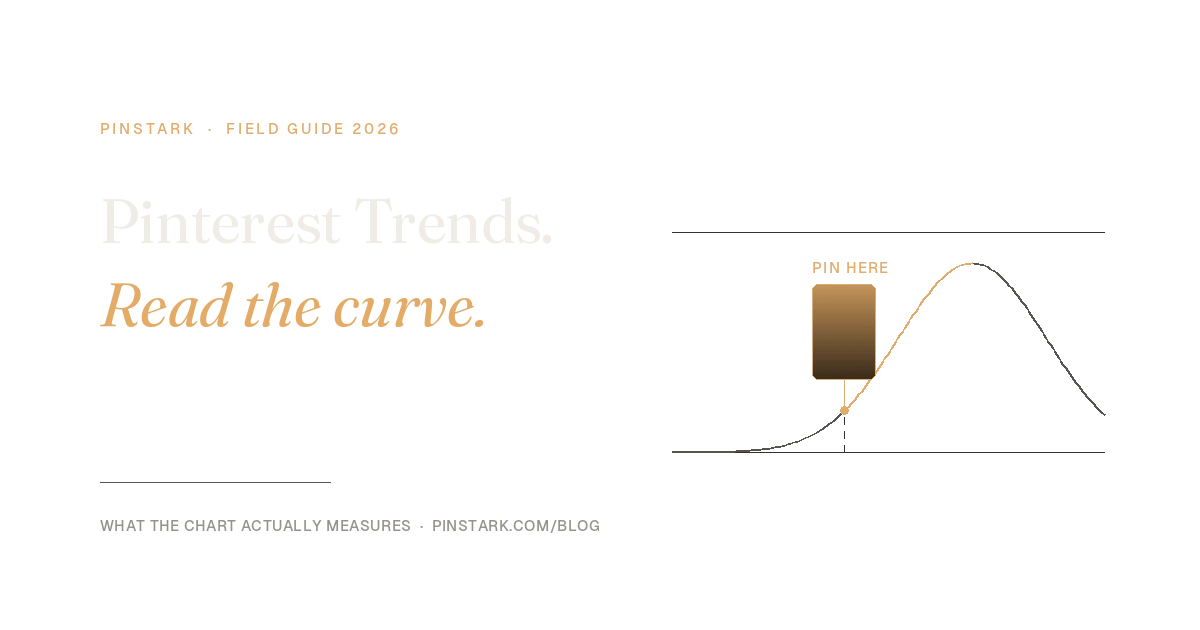
The single most important thing about the Pinterest Trends chart is that it does not show search volume. It shows each keyword scaled against its own best week. A term at 100 and a term at 100 are not equally popular — they are each at their own peak, and one of them might be a hundred times bigger than the other.
Almost every guide to Pinterest Trends skips that, which is how people end up confidently pinning into a term with no audience. So: what the tool actually measures, how to read it, and how to turn a line on a graph into something worth publishing.
What Pinterest Trends is
It is a free tool inside Pinterest that shows a historic view — up to the last two years — of the top search, save and shopping trends, by region. You reach it from the hamburger menu, under Analyze performance → Pinterest Trends.
It answers a question no keyword tool outside Pinterest can: not what people search on Google, but what people search here, where the intent is planning rather than buying-right-now, and where the planning happens weeks or months ahead.
Pinterest notes that some features are in testing and available only in certain regions, so your view may not match a screenshot you saw elsewhere.
The normalisation, properly explained
This is the part worth slowing down for.
In Pinterest's own words, it "normalizes search volume by only considering the ratio of searches for each trend to the total number of searches that happened on our platform during the same time frame." Then, "to make comparisons between terms easier, the highest point of the search term is indexed to 100, and the lowest point is indexed to 0 on each plot."
Two consequences, and both change how you use the tool:
The y-axis is relative, not absolute. A line sitting at 90 means "near this term's own ceiling", not "lots of people". A tiny niche term and a huge seasonal term both touch 100 at their peak.
You get absolute comparison only by plotting terms together. When you add multiple keywords to one graph, they are scaled against each other, so the relative heights become meaningful. You can enter up to four keywords at once.
So the useful habit is: never read a single line and conclude a term is big. Always plot your candidate against a term you already understand the size of. That one discipline is the difference between the tool informing your decisions and merely flattering them.
What the search trends view gives you
Open Search trends and you get popular keywords plus four things per term that matter more than the headline number: whether the trend is seasonal, and its weekly, monthly and yearly change.
Seasonality is the one to act on first. A term that peaks every February is not a term to pin in February — it is a term to pin in December, because Pinterest surfaces content that has had time to accumulate saves. The chart tells you the lead time, which is the whole reason to look.
Click a keyword and you get the graph, a date range selector, demographics (age and gender distribution per keyword), and Popular Pins — actual top-performing Pins for that search, which is your competitive brief for what the winning creative currently looks like.
Moments, and why they are underrated
Moments cover seasonal and cultural events — holidays, key shopping periods — and show how interest builds, peaks and cools. Each phase has its own detail page: when a Moment is in the "approaching" phase, you get guidance specific to that phase.
That is a publishing calendar Pinterest has written for you, based on its own data about when people start planning. Most people discover Father's Day demand in the week of Father's Day. The Moments view exists to stop you doing that.
The feature almost nobody uses
If you have a business account, there is a section called Growing trends your audience loves — the top trends among your own engaged users and followers over the past 90 days.
Three details make it more useful than it sounds. It is updated daily. It reflects your worldwide audience even if you have a specific region selected. And it is about the people already reaching you, not the platform at large — so it tells you where your existing traction is pointing, which is usually a better bet than chasing a trend you have no foothold in.
Turning a trend into a Pin
Here is where most trend advice stops and the actual work starts. A rising keyword is not a content plan. Four steps that make it one:
- Plot it against a known term. Confirm the size is real, not just a line at its own peak.
- Read the seasonality for lead time. Work backwards from the peak, not forwards from today.
- Open Popular Pins for the term. Look at what is actually ranking — the framing, the overlay style, the angle. You are looking for the gap, not the template.
- Make several distinct Pins, not one. Different treatments of the same product reach different people, and Pinterest rewards fresh imagery over the same file re-uploaded.
Step four is where trend research usually dies. Finding the keyword takes ten minutes; producing six genuinely different, well-shot, well-captioned images for it takes considerably longer, which is why most people research a trend and then publish one mediocre Pin into it. Our guide to making a Pin on Pinterest covers the publishing mechanics once you have the images.
We also built a live trends view that pulls current Pinterest trending keywords, for exactly this loop — find the term, then make the pins for it without changing tools.
Pinterest Predicts is a different thing
People conflate these two constantly, and they answer different questions.
Pinterest Trends is the live instrument: what is moving this week, with two years of history behind it.
Pinterest Predicts is Pinterest's annual trend forecast — a published report naming trends it expects to define the year ahead. The 2026 edition was published on 9 December 2025, and the reports run on roughly that annual rhythm.
Use them differently. Predicts is for the January-to-March planning conversation: themes, aesthetics, the shape of the year. Trends is for deciding what to publish this fortnight. A Predicts theme with no corresponding movement in Trends is a bet; a Predicts theme you can see climbing in Trends is a schedule.
Wherever you see the crystal-ball icon in the Trends interface, prediction data is available for that trend too.
What Trends will not tell you
Being precise about the limits keeps you from over-trusting it:
- Not absolute volume. Covered above, and worth repeating because it is the most common error.
- Not competition. A term can be rising and already saturated. Popular Pins is your only read on that, and it is qualitative.
- Not whether the trend fits you. A climbing keyword in a category you have no credibility or product in is someone else's opportunity.
For the broader method — autocomplete, guided search tiles, and how to build keyword habits that change what you publish — our piece on Pinterest keyword research covers the full toolkit; this one is specifically about reading the Trends chart.
Frequently asked questions
Is Pinterest Trends free? Yes. It is inside Pinterest, under Analyze performance. Some features need a business account, and some are region-limited while in testing.
Does Pinterest Trends show real search numbers? No. It shows each term scaled so its highest point is 100 and its lowest is 0, based on the ratio of searches for that term to all searches in the same period. Plot terms together to compare their real relative size.
How far back does the data go? Up to the last two years.
How many keywords can I compare at once? Up to four on one graph.
What is the difference between Pinterest Trends and Pinterest Predicts? Trends is live data on what is moving now, with two years of history. Predicts is an annual published forecast of themes for the year ahead — the 2026 edition came out on 9 December 2025.
When should I pin for a seasonal trend? Before the peak, not during it. Use the seasonality view to find when interest starts building and publish into the rise, so your Pins have time to accumulate saves.
Find the trend, then make the pins for it — paste a product link and get generated photography, editorial overlays and search-ready copy in about a minute.